Use Case :
- Create a download URL in OIC , which upon clicking will download any attachment / file defined in the integration to local machine.
- You want user to view a file as an attachment and don't want them to access the SFTP/FTP directly.
- You may want the user to view maybe a callback file from Oracle Fusion Import Program (though it can be done through UCM, but still this is an option. )
- You want to extract data from database and provide to user, but you don't want to expose the database (connection details) to user .
Logic Behind :
When we hit any URL in the browser, it actually requests for a GET operation to the server.
Our expectation here is anyone with the URL when hits in the Browser, it will auto download a file or an attachment .
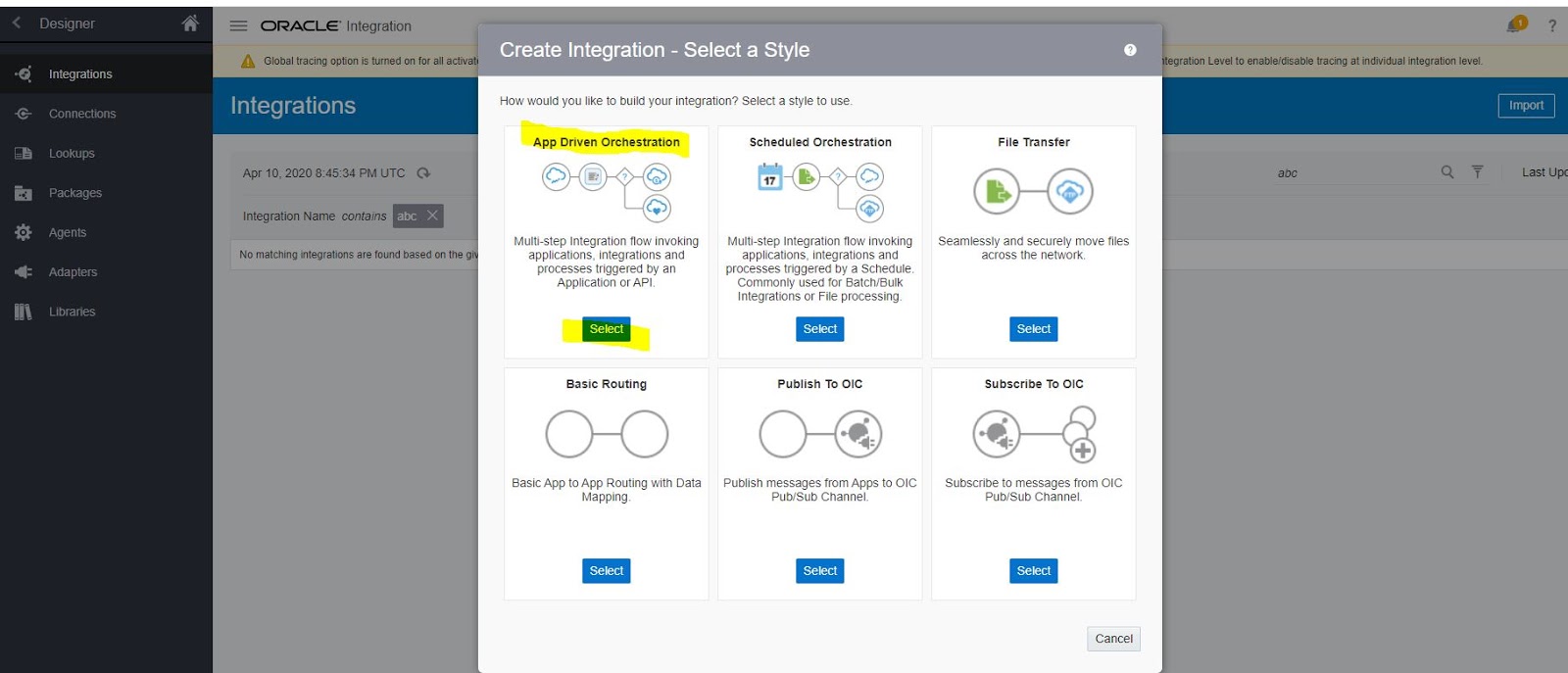
Step 1 : Login and Create an app driven integration with a generic REST Adapter .


Step 2 : Make sure to configure Custom Header and operation = GET
** NOTE : You can define query parameters as well in case you want to put a filter on data in OIC.

Step 3 : Set the response Payload as Binary

Step 4 : Configure the Custom Header : Content-Disposition (We are using this to set the filename)
For more information on this header . Pls refer
https://developer.mozilla.org/en-US/docs/Web/HTTP/Headers/Content-Disposition

Step 5 : Verify the details as per the SS

Step 6 : Now since we are not dealing with any file in this integration, hence we are writing a custom file which we will download.
To write a dummy file , we are using stage write action.


This is sample file that i am using to configure the stage write activity .


Now i will map some dummy data and write the file .


Step 7 : Now we need to configure the response mapper, which is actually responsible to send the response.

- Map the file reference that you want to be downloaded
- Set the Content-Disposition Header as filename="abc.csv", here abc.csv is the file name and you can make it dynamic by passing a variable.
I have hardcoded it for now.


Step 9 : Click on the metadata URL generated , or you can get it clicking the i button beside the activation slider button.

Step 10 : Click on the URL . If you have configured the integration correctly , the file will auto download to your machine.

Open the file ! And bingo !! You are done !

** NOTE : In case you want to put a filter criteria . You can use query parameter in the URL. You need to configure same in the Rest adapter.
Example :
https://xxxxxxx.integration.ocp.oraclecloud.com:443/ic/api/integration/v1/flows/rest/TESTPOC/1.0/testfile?customerno=120&batch=2
Happy Coding !
Umm are you searching for the code now ? Even i would have done the same :P
https://github.com/sauvik8/sauvik-public/tree/master/OIC%20File%20Download%20Attachment


